# Little Backup Box
Bash shell scripts that transform a Raspberry Pi (or any single-board computer running a Debian-based Linux distribution) into an inexpensive, fully-automatic, pocketable photo backup device.
 ## Installation
First of all, make sure that your Raspberry Pi is connected to the internet.
Run the following command on the Raspberry Pi:
curl -sSL https://goo.gl/btmpKd | bash
Little Backup Box supports three backup modes:
- **Card backup** Automatically backs up the contents of a storage card to an external storage device.
- **Camera backup** Transfers photos, raw files, and videos from the camera connected directly to the Raspberry Pi. The transferred files are saved in the */home/pi/BACKUP/[CAMERA MODEL]* directory on the system storage card. **Important** Make sure that the camera is set to the MTP USB connection mode.
- **Remote control** Provides a simple web interface to manually choose one of the two modes described above.
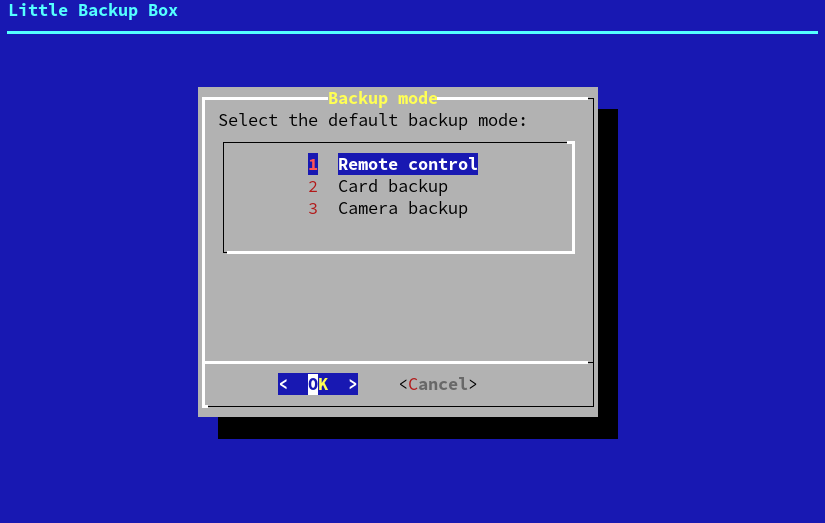
During the installation, choose the desired mode from the selection dialog.
## Installation
First of all, make sure that your Raspberry Pi is connected to the internet.
Run the following command on the Raspberry Pi:
curl -sSL https://goo.gl/btmpKd | bash
Little Backup Box supports three backup modes:
- **Card backup** Automatically backs up the contents of a storage card to an external storage device.
- **Camera backup** Transfers photos, raw files, and videos from the camera connected directly to the Raspberry Pi. The transferred files are saved in the */home/pi/BACKUP/[CAMERA MODEL]* directory on the system storage card. **Important** Make sure that the camera is set to the MTP USB connection mode.
- **Remote control** Provides a simple web interface to manually choose one of the two modes described above.
During the installation, choose the desired mode from the selection dialog.
 When prompted, reboot the Raspberry Pi.
## Usage
The exact steps depend on the backup mode.
### Card backup mode
1. Boot the Raspberry Pi
2. Plug in a backup storage device
3. Insert a storage card into a card reader and plug it into the Raspberry Pi
4. Wait till the Raspberry Pi shuts down
**Note:** To differentiate between different storage cards, the backup script creates a datetime-based *.id* file in the root of each storage card. The name of the *.id* file is also used as the destination backup folder on the storage device.
### Camera backup mode
1. Boot the Raspberry Pi
2. Connect the camera to the Raspberry Pi
3. Turn the camera on
4. Wait till the Raspberry Pi shuts down
### Remote control mode
1. Point the browser to *http://[IP-ADDRESS]:8080* (replace *[IP-ADDRESS]* with the actual IP address of the Raspberry Pi)
2. Start the desired backup mode by pressing the appropriate button.
When prompted, reboot the Raspberry Pi.
## Usage
The exact steps depend on the backup mode.
### Card backup mode
1. Boot the Raspberry Pi
2. Plug in a backup storage device
3. Insert a storage card into a card reader and plug it into the Raspberry Pi
4. Wait till the Raspberry Pi shuts down
**Note:** To differentiate between different storage cards, the backup script creates a datetime-based *.id* file in the root of each storage card. The name of the *.id* file is also used as the destination backup folder on the storage device.
### Camera backup mode
1. Boot the Raspberry Pi
2. Connect the camera to the Raspberry Pi
3. Turn the camera on
4. Wait till the Raspberry Pi shuts down
### Remote control mode
1. Point the browser to *http://[IP-ADDRESS]:8080* (replace *[IP-ADDRESS]* with the actual IP address of the Raspberry Pi)
2. Start the desired backup mode by pressing the appropriate button.
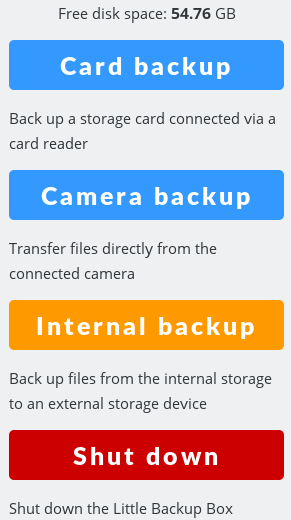 The remote control mode gives you access to the **Device backup** action that backs up the */home/pi/BACKUP* folder on the Raspberry Pi to an external storage device.
## Problems?
Please report bugs and issues in the [Issues](https://github.com/dmpop/little-backup-box/issues) section.
## Contribute
If you've found a bug or have a suggestion for improvement, open an issue in the [Issues](https://github.com/dmpop/little-backup-box/issues) section.
To add a new feature or fix issues yourself, follow the following steps.
1. Fork the project's repository repository
2. Create a feature branch using the `git checkout -b new-feature` command
3. Add your new feature or fix bugs and run the `git commit -am 'Add a new feature'` command to commit changes
4. Push changes using the `git push origin new-feature` command
5. Submit a pull request
## Author
Dmitri Popov [dmpop@linux.com](mailto:dmpop@linux.com)
## License
The [GNU General Public License version 3](http://www.gnu.org/licenses/gpl-3.0.en.html)
## Linux Photography
Little Backup Box is a part of a streamlined and automated Linux-based photographic workflow described in the [Linux Photography](https://gumroad.com/l/linux-photography) book. The book provides step-by-step instructions on building a Raspberry Pi-based photo backup device running the Little Backup Box script. Get your copy at [Google Play Store](https://play.google.com/store/books/details/Dmitri_Popov_Linux_Photography?id=cO70CwAAQBAJ) or [Gumroad](https://gumroad.com/l/linux-photography).
The remote control mode gives you access to the **Device backup** action that backs up the */home/pi/BACKUP* folder on the Raspberry Pi to an external storage device.
## Problems?
Please report bugs and issues in the [Issues](https://github.com/dmpop/little-backup-box/issues) section.
## Contribute
If you've found a bug or have a suggestion for improvement, open an issue in the [Issues](https://github.com/dmpop/little-backup-box/issues) section.
To add a new feature or fix issues yourself, follow the following steps.
1. Fork the project's repository repository
2. Create a feature branch using the `git checkout -b new-feature` command
3. Add your new feature or fix bugs and run the `git commit -am 'Add a new feature'` command to commit changes
4. Push changes using the `git push origin new-feature` command
5. Submit a pull request
## Author
Dmitri Popov [dmpop@linux.com](mailto:dmpop@linux.com)
## License
The [GNU General Public License version 3](http://www.gnu.org/licenses/gpl-3.0.en.html)
## Linux Photography
Little Backup Box is a part of a streamlined and automated Linux-based photographic workflow described in the [Linux Photography](https://gumroad.com/l/linux-photography) book. The book provides step-by-step instructions on building a Raspberry Pi-based photo backup device running the Little Backup Box script. Get your copy at [Google Play Store](https://play.google.com/store/books/details/Dmitri_Popov_Linux_Photography?id=cO70CwAAQBAJ) or [Gumroad](https://gumroad.com/l/linux-photography).